# Device Management
# Device Information
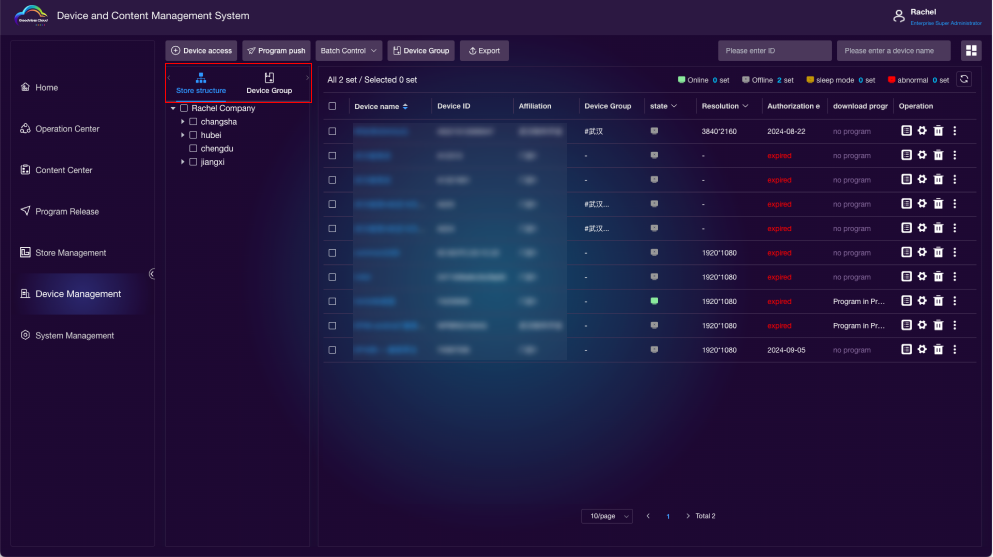
You can filter devices based on store architecture, device groups, and store groups.
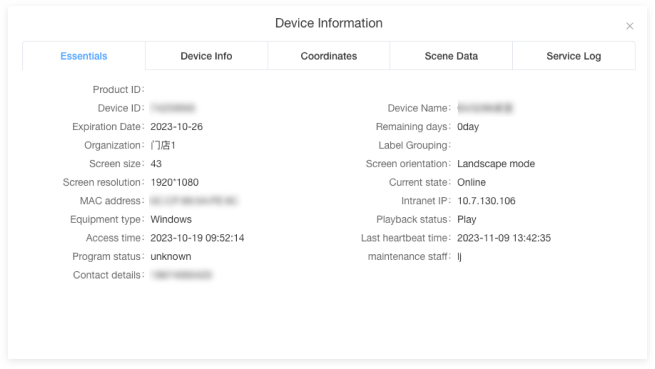
Click on the device name to display detailed information about the device.
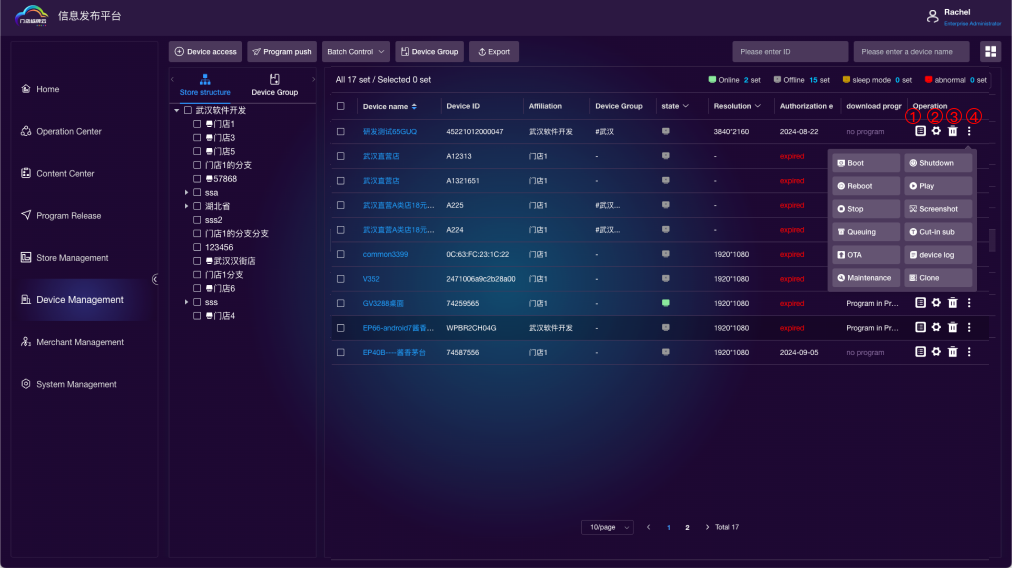
Operations: 1. Program List; 2. Device Settings; 3. Delete Device; 4. More Operations;
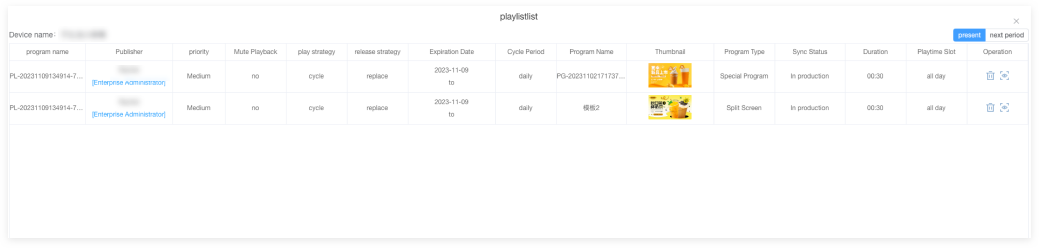
Program List is divided into Current and Next.
- Current: Programs are downloaded immediately after release.
- Next: Programs are set to take effect on a specified date after release. They start downloading on the effective date.
You can preview and delete programs.
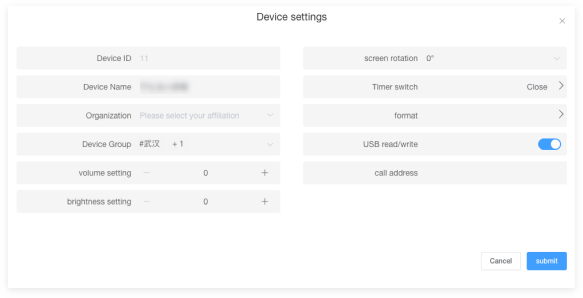
Yes, in device settings, you have the ability to change the device name, organization affiliation, device group, and remotely control the terminal machine.
# Device Access
You can filter devices based on store architecture, device groups, and store groups.
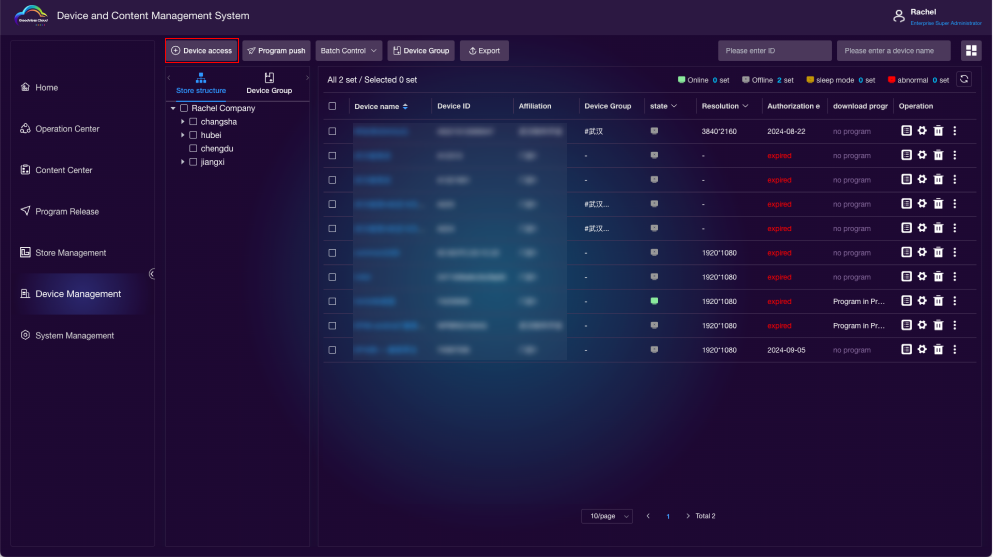
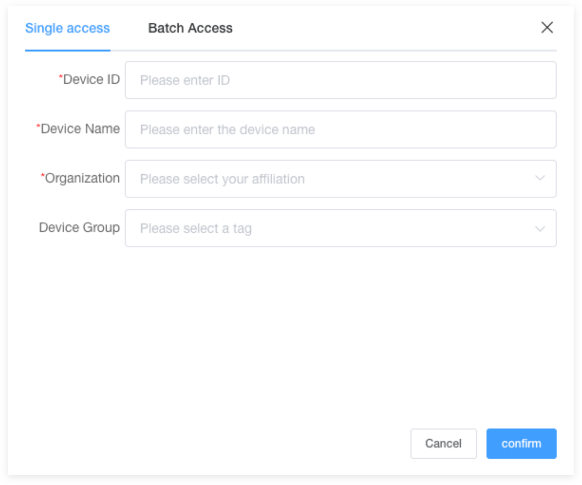
Clicking on "Device Access" allows for both individual and batch device access. For batch access, you need to download the template, fill it out in the template format, and then upload it.
1)Device ID: Find and fill in the "Local ID" on the terminal software page.
2)Device Name: Rename each terminal with a custom name of your choice.
3)Organization Affiliation: You can add the newly added device to a specific store structure.
4)Tags: This tag serves as a grouping label. You can add devices to a specific group using this tag. When publishing programs, you can choose devices based on these groups.
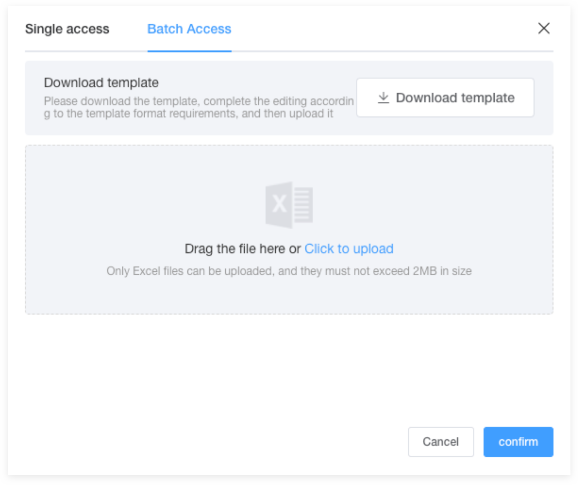
Batch Access Template Format:

# Program Push
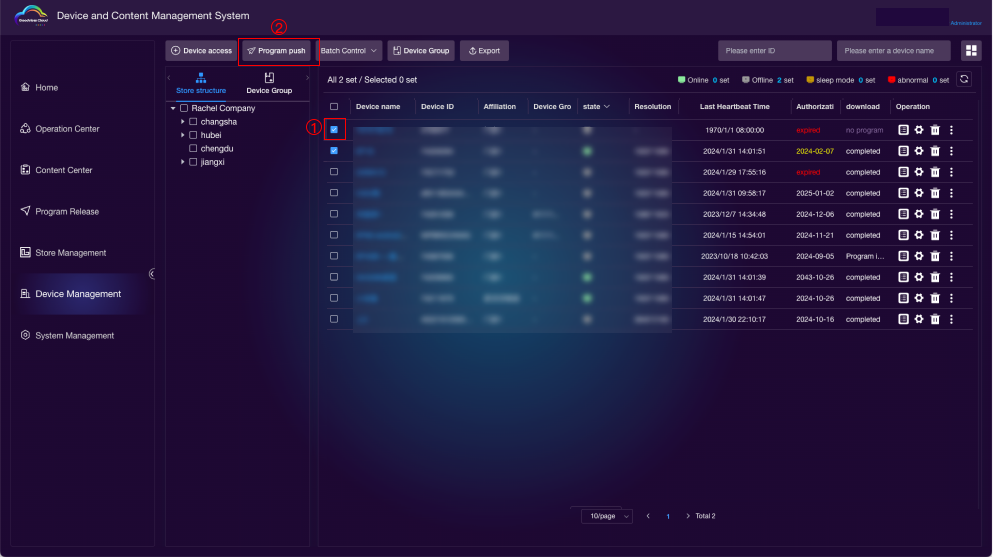
- Select the devices (multiple selections allowed).
- Click on "Program Push" to enter the program publishing page and publish programs to the selected devices.
# Device Control
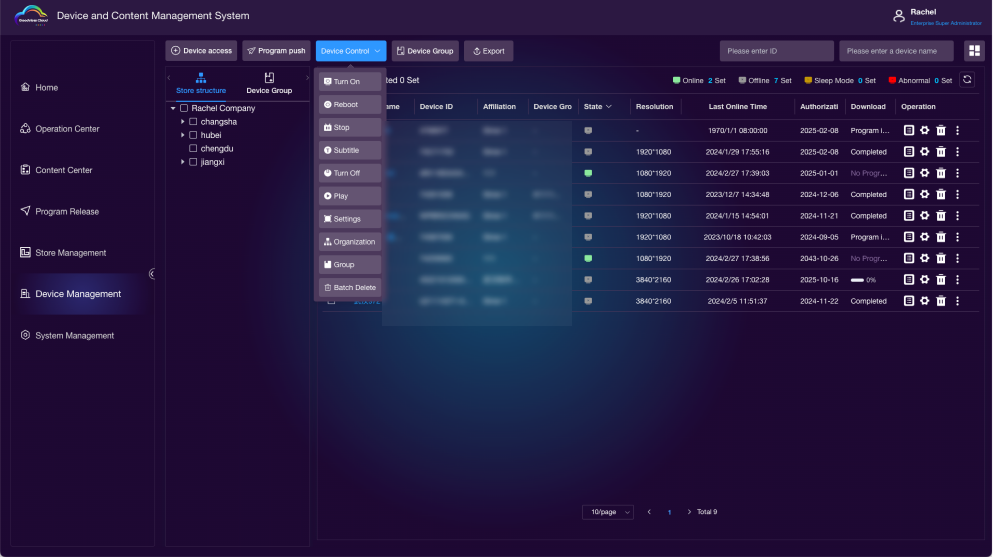
- Select online devices (multiple selections allowed).
- Click on "Device Control" to control device power on/off, play, stop, insert subtitles, screen mirroring settings, etc.
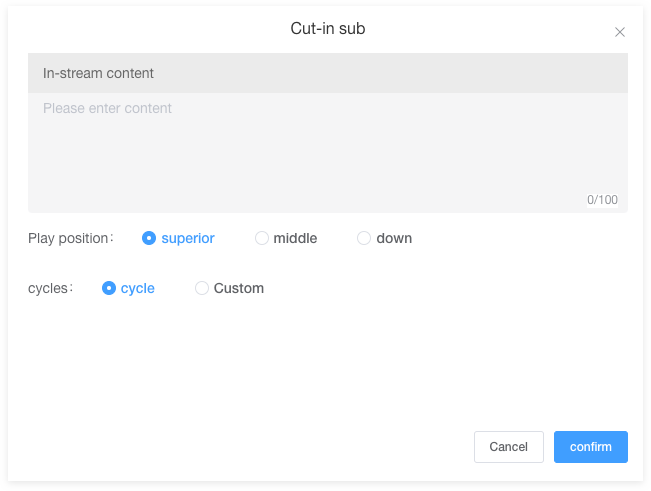
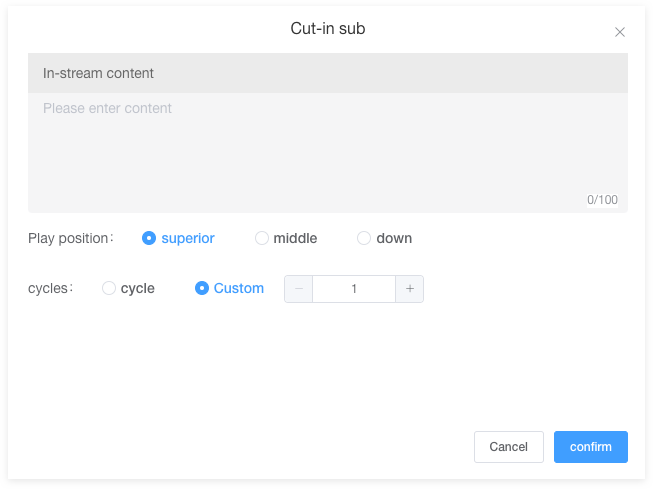
Subtitles
- Enter the content to be inserted.
- Choose the playback position (where it will be displayed on the device screen).
- Loop Count: Loop (continuous playback), Custom (set the number of times the subtitle will be displayed).
Screen Mirroring Settings
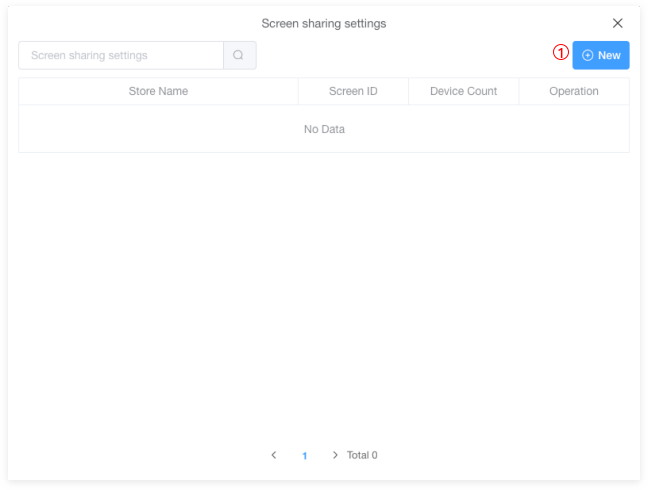
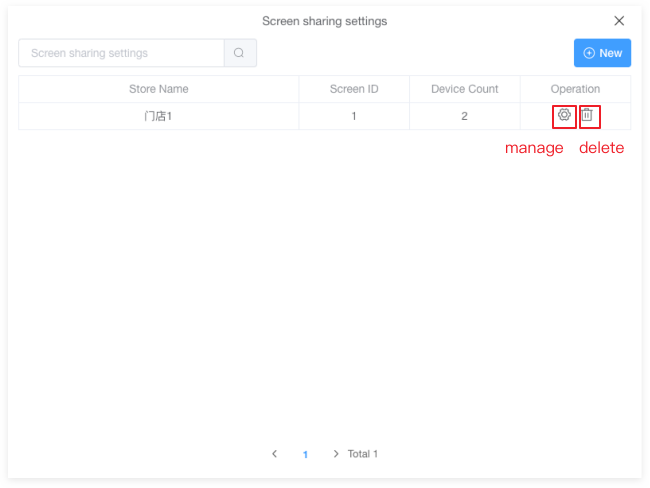
Screen mirroring settings allow you to synchronize playback for different devices within the same store.
- Click "New."
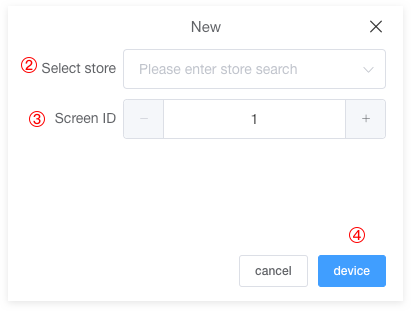
- Choose the store.
- Set the screen mirroring number (cannot be duplicated within the same store).
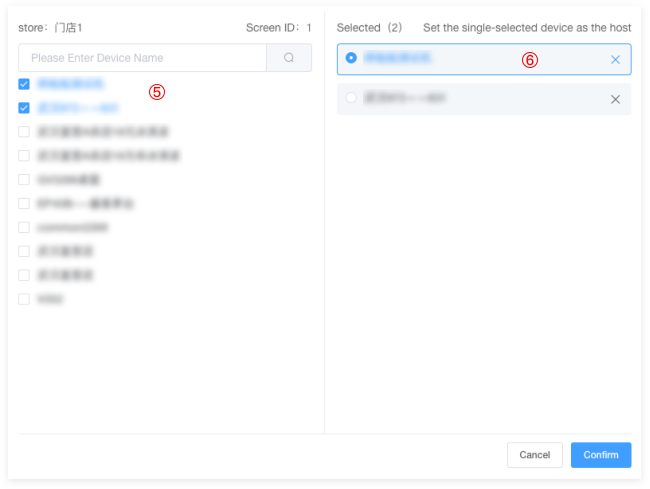
- Select devices.
- Choose the devices that need to be synchronized for this store.
- Click to select the host device; others will be slave devices.
- After creating, you can manage and delete the configuration.
# Device Groups
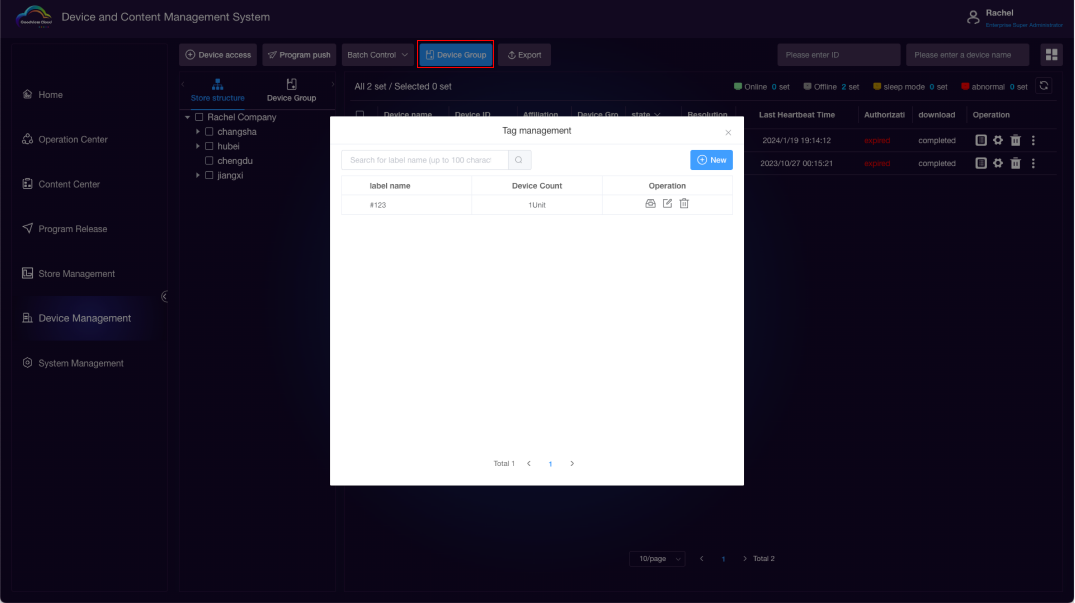
Click on device groups to create, manage, rename, and delete device groups.
New Tag
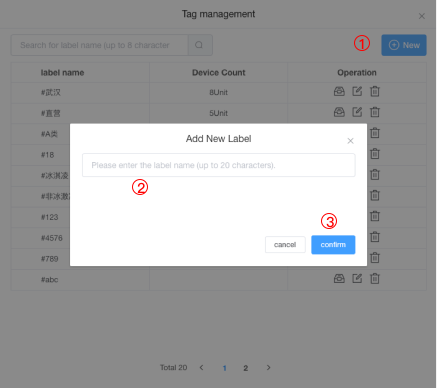
Click "New," enter the tag name, click "OK" to create a new tag.
Manage Tags
Select the newly created tag and click on the management icon.
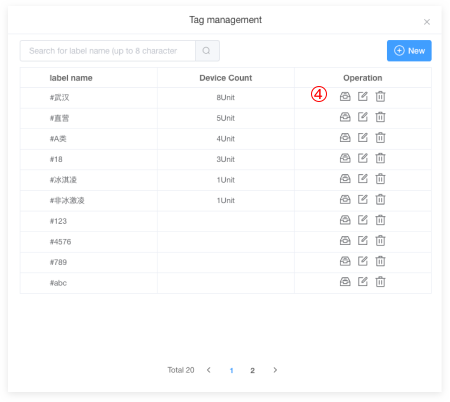
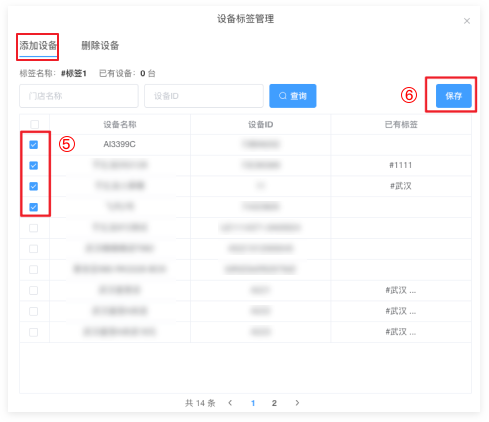
Select the devices you want to add, click "Save," and the selected devices will be added to this tag.
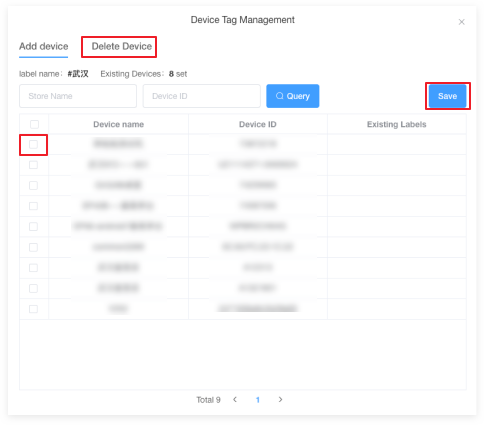
Click "Delete Devices," select the devices you want to remove, click "Delete," and the selected devices will be removed from this tag.
Rename Tag
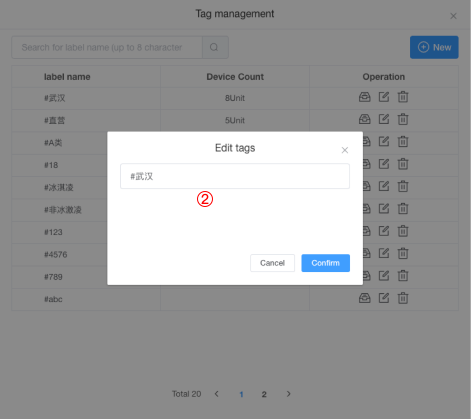
Click on the rename icon to rename the tag.
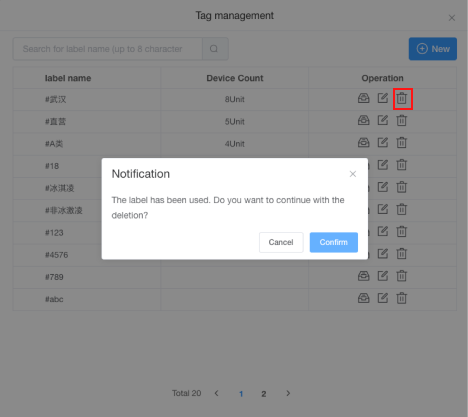
Delete Tag
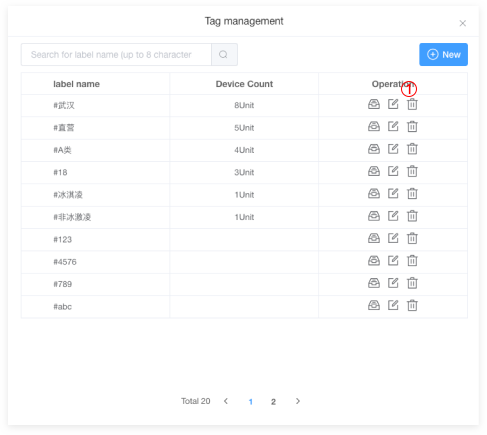
Click on the delete icon. After deletion, the tag will be removed, and devices associated with this tag will also be removed from it.
# Device Export
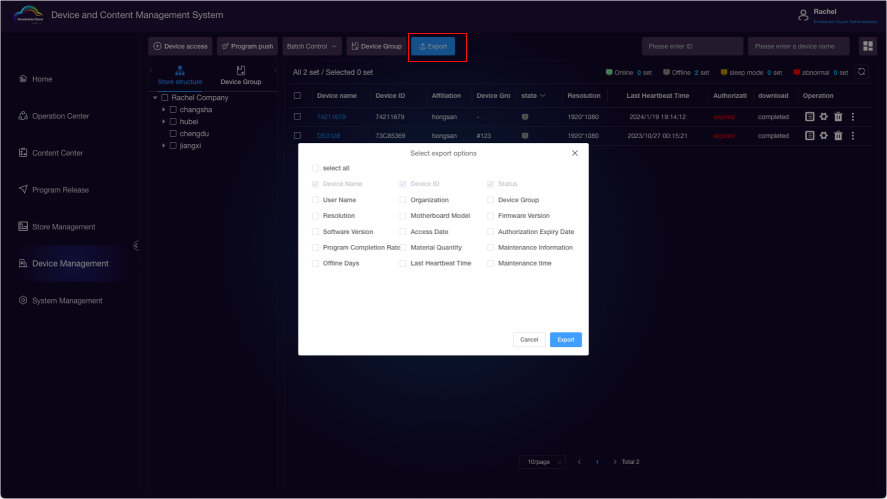
Select the devices for which you want to view data details (if none selected, all devices will be exported). Click "Export" and choose the fields you want to export. After clicking export, an Excel spreadsheet will be generated.